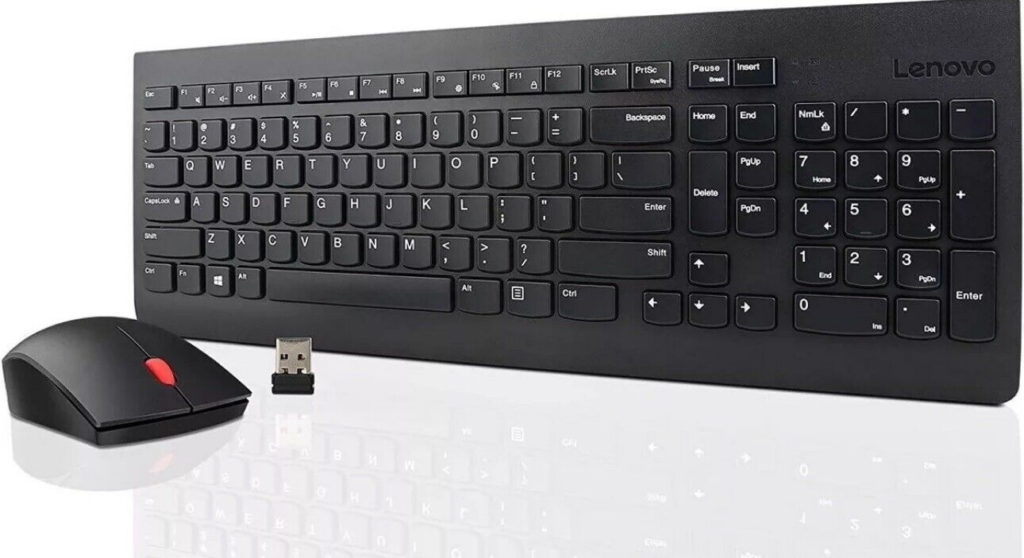
Trying to find information on how to pair (connect) the Lenovo Essential Wireless Keyboard and Mouse combo is like pulling teeth, so I’ve decided to share what I know here in hopes of helping others get the devices paired quickly.
- To pair the Keyboard
- Remove batteries
- Press & hold F2, F3, F4, and insert batteries (Amber LED doesn’t turn on)
- Release buttons and tap 3 key once
- Amber LED starts blinking slow
- Place keyboard near dongle
- Amber LED starts blinking fast and stops
- To pair the Mouse
- Turn off mouse
- Press & hold left and middle buttons, turn on mouse (Amber LED doesn’t turn on)
- Release buttons and tap middle button once
- Amber LED starts blinking fast
- Place mouse near dongle
- Amber LED stops blinking after a moment
Hope this helps you get the devices working again!
15 Comments
GOD bless you!
You’re a blessing.. Thanks for the info
HUGE!!! Thank you!! Confirmed working.
Thank you so much Jeremy!! It worked flawlessly!!!
Awesome, thank you very much for the information !
How do you pair the Gen 2 Lenovo keyboard and mouse
Hello
I was able to pair a mouse by following these instructions but not keyboard.
Hello thanks for the info.
I had lost my old USB dongle and used a new one, but maybe the new unit is not compatible.
I can see that the pairing starts on my keyboard and mouse the amber led blinks however the units are not found
Thank you sooooo very much!!!! I’ve been trying all night long and even tried Lenovo’s instructions and nothing! Found yours and within 10 seconds, good to go!!!! 🤯🤘🏼
Thank you so much Jeremy!! You are the best jeremy. I was trying to find this guide for so many times but thanks to you it works perfectly. Love your work thanks again.
Thank you so much Jeremy! You are the best jeremy. I was trying to find this guide for so many times but thanks to you it works perfectly. Love your work thanks again.
The amber light came on and went out. Nothing happened when I pushed the 3 key. What now
iT WORKS!!!! Thank you ma man!!!
Mil gracias amigo, pensé que estos packs venían emparejados de fábrica y que no era posible vincular el teclado y el ratón con otro receptor inalámbrico, pero sí, el procedimiento funciona a las mil maravillas.
Reitero las gracias por compartir esta “inédita” información, hasta que no dí con tu página no había encontrado ninguna referencia, ni en la web de Lenovo, sobre cómo consegurlo.
Saludos a todos y en especial a Jeremy.
Here in 2026 to say thank you! Worked great for replacing a keyboard on a couple of sets at my organization, though doesn’t seem to work for the mice when trying a different dongle than the set came with. Not sure why.